Four steps from an empty warehouse to working picking. Every step comes with a picture of what you actually see on screen. The first step takes the longest — the other three are quick.
Before you start
A Movira account. If you do not have one yet, write to us — we will set it up and send you a login link.
A list of products with their SKUs. If you do not have codes yet, invent them before you start entering: renaming later is more trouble than getting it right now.
An idea of how the warehouse is divided — aisles, shelves, boxes. You can also start with a single location and add the structure later.
A barcode scanner speeds things up but is not required. You can start without one.
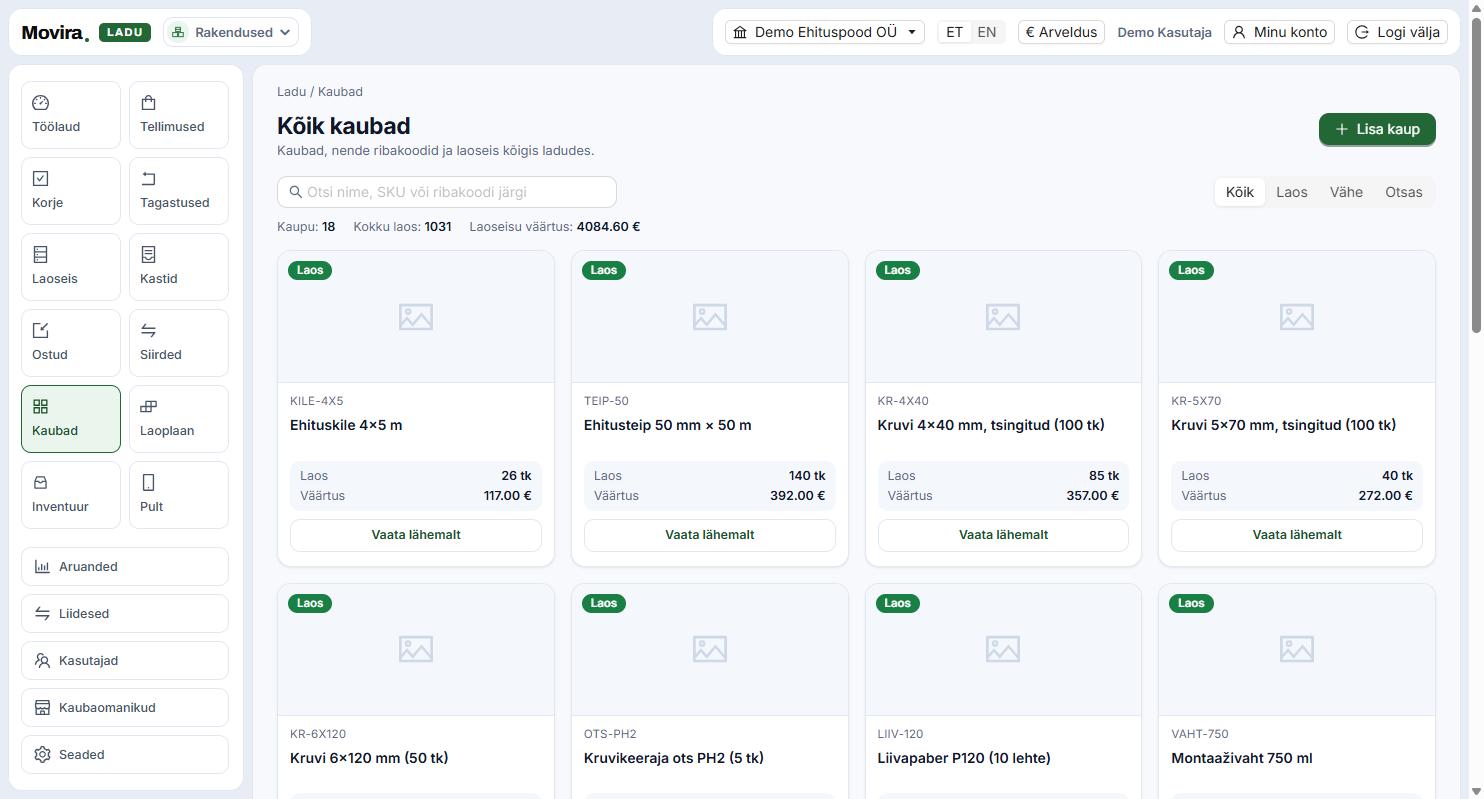
Open "Products" and press "Add product". Name and SKU are required; a barcode is strongly recommended, because with one you can scan the product on picking and receiving, and without one every line has to be found by hand. Set the reorder point right away — that is the number the dashboard uses to say "running out" before the product actually runs out. The three figures at the top tell you where you stand: how many products, how many units in total and what the stock on the shelf is worth.
The "In stock", "Low" and "Out" filters give you exactly the list you need at that moment.
One product can carry several barcodes — a single unit and a full case, for example.
Quantities are kept to three decimals, so metres and kilos work the same way as pieces.
If the warehouse serves several goods owners, link the product to its owner right away — otherwise you end up doing it on every movement.
Step 2
Receive goods into the warehouse
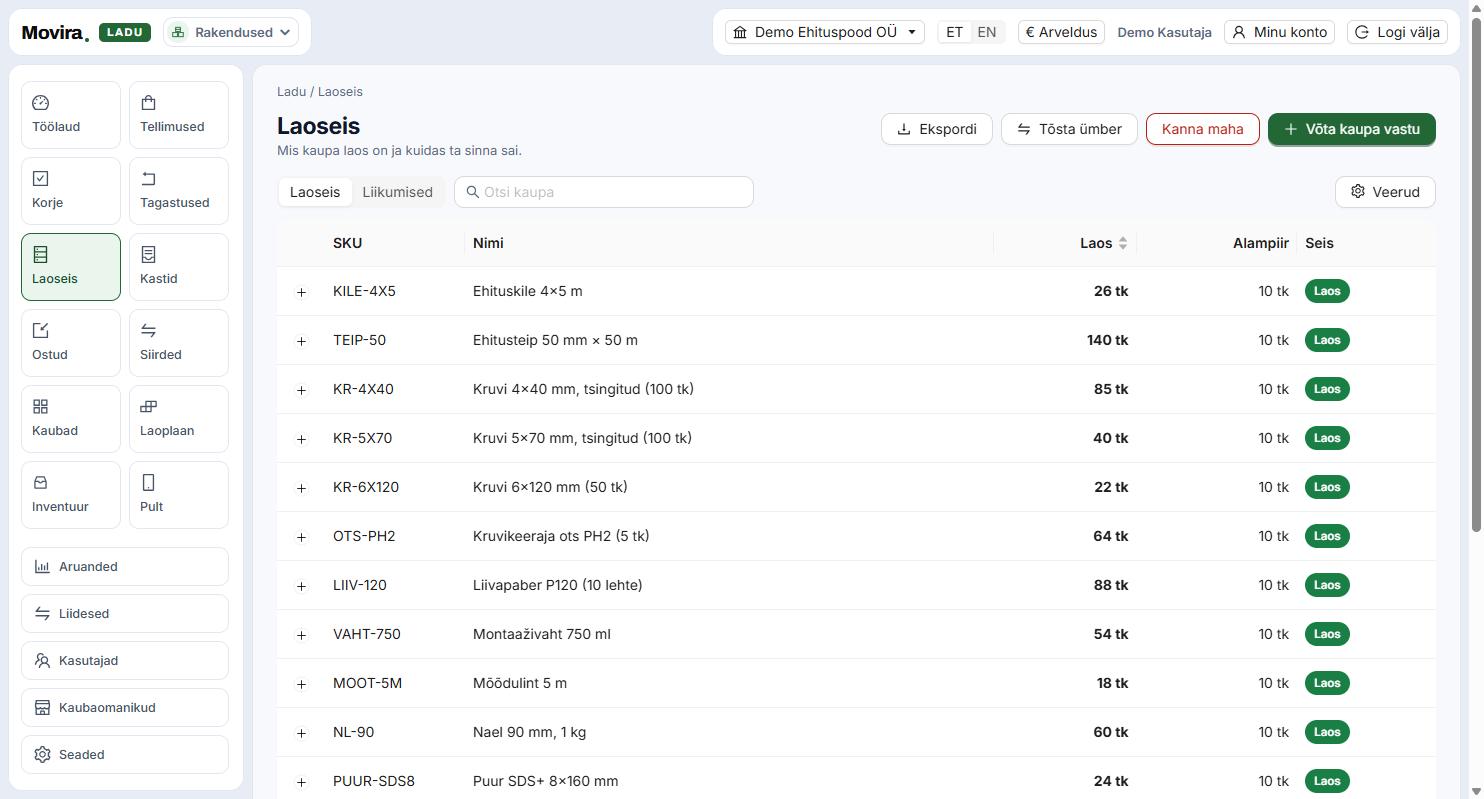
Stock shows what is in the warehouse and how it got there. "Receive goods" adds a quantity and records the movement; "Write off" removes one; "Move" transfers between locations. The "Movements" tab is the warehouse's history: every row carries the time, the quantity, the person and the reason. That is exactly why a stock level should not be rewritten by hand — if a number is wrong, a movement is missing somewhere, and it can be found.
Larger deliveries come in through a purchase order ("Purchases"), which carries the supplier and the invoice number with it.
Stocktaking is a separate tool: you count a shelf and the system turns the differences into movements.
The column selection is yours — "Columns" lets you surface what your warehouse actually tracks.
Step 3
Take an order from picking to dispatch
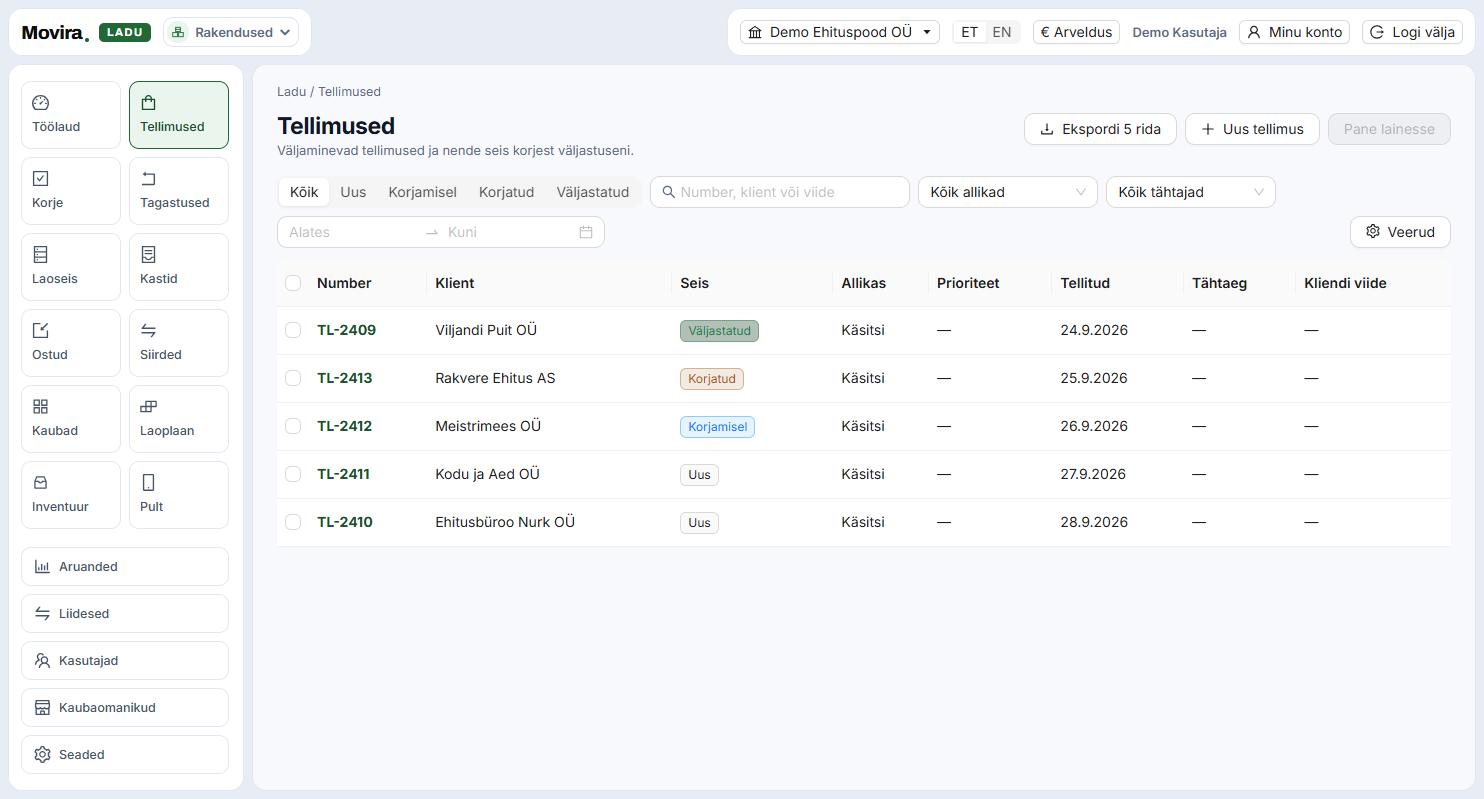
An outbound order arrives from a webshop, through an integration, or by hand with "New order". It moves through four states: new, picking, picked, dispatched. Select orders in the list and press "Add to wave" — a wave is one picking round, which the picker takes onto the handheld. A picked order is packed and handed to the courier; only then does it become dispatched.
The status tabs are also the order of work: the day moves from left to right.
Several orders in one wave means the picker visits a shelf once, not three times.
A return travels its own path ("Returns") and puts the goods back into stock.
Step 4
Open the dashboard in the morning
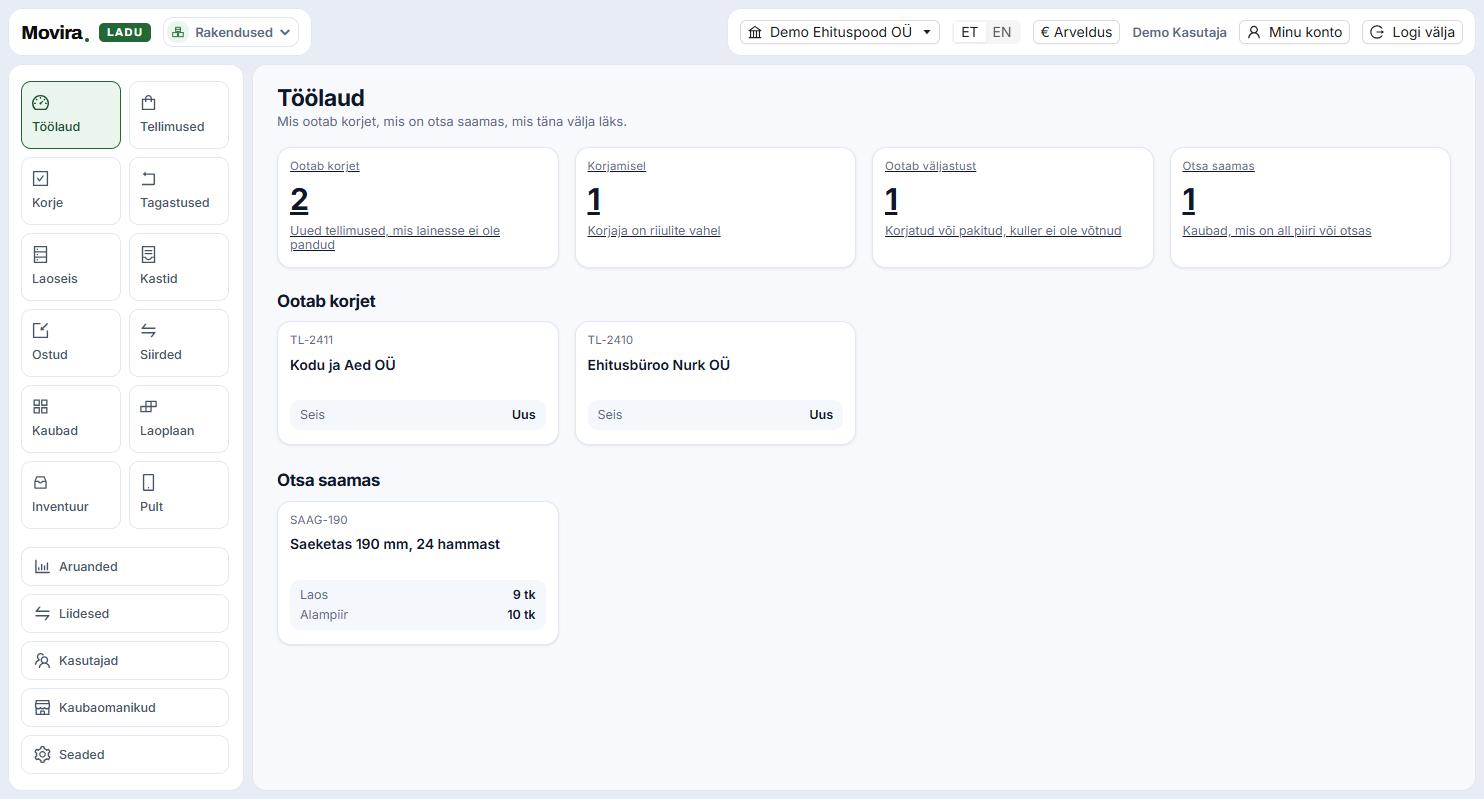
The dashboard is one screenful of answers to "what has to happen today". Four numbers at the top: what is waiting to be picked, what is being picked, what is waiting to go out and what is running out. Under each number there is a list — not just a count, but WHICH order has no picker and WHICH product is running low. From there you can go straight on.
The numbers belong to the active account. You switch accounts from the name bar at the top.
"Running out" comes from the reorder point — without one that card stays empty forever.
If a number and its list disagree, the list is shortened: it shows the most urgent, not all of them.
Tips
What people usually trip over
A stock level has gone wrong
Do not fix the number by hand, go through "Movements". A wrong stock level almost always means a receipt or a write-off never happened — and that is visible row by row.
The picker cannot see an order on the handheld
The handheld only shows orders that are in a wave. Select the order in the list and press "Add to wave"; before that it is just a new order.
Webshop orders are not coming in
Under "Integrations" every shop shows its last successful pull and its last error. The most common cause is an expired key on the shop side.
"Running out" is empty, but the product is gone
That card comes from the reorder point. A product without one has no threshold to warn from.
A goods owner sees the wrong products
The owner sits on the product, not on the movement. Check on the product card who it belongs to — the reports come from there too.
I want to try things without messing up the real warehouse
Create a second account and switch to it from the top bar. Accounts cannot see each other's data.
The screenshots come from the working app on a demo account — no customer data appears here. They are in Estonian on the English page as well; the app itself speaks both languages and you switch at the top right.
Try it yourself
The hardest part is the first list of products. Once that exists, the rest follows by itself. If something stays unclear, write to us — a person answers, not a form.